Translate

Showing posts with label header. Show all posts

Tuesday

How to: Push (or Center) a Blog Header

This tutorial is to serve as an alternative to my other tutorial titled How to: Center a Blog Header.  Although that method works well in most cases, it can fail to center if used with other enhanced template features so if you find your banner image is not centering properly then go ahead and give this simple method a try.  The code below is not meant to be used in combination with any other code for centering a header so be sure to remove any prior "banner centering code" before moving forward.

To use this tutorial you will need to have a banner already loaded onto your blog.  If you need help installing a blog banner then follow this tutorial: How to: Install a Blog Header.
With a banner in place you are ready to move forward with "pushing" your blog header, so let's begin...

1. Log-in to your blog click on the "Design" link in the top right corner link list...


2. This should bring you directly to the "Template" page, in the left links list...


3. Click on the "Customize" button...


4. We are now in the "Template Designer" area...


This interface offers you the ability to easily change aspects of your blog.  We will be adding some code to the "Advanced CSS" area so let's navigate to that area...

5. Click on "Advanced" at the bottom of the left link list...


6. Now using the scroll bar...


7. Scroll down the inner link list until you see "Add CSS"...


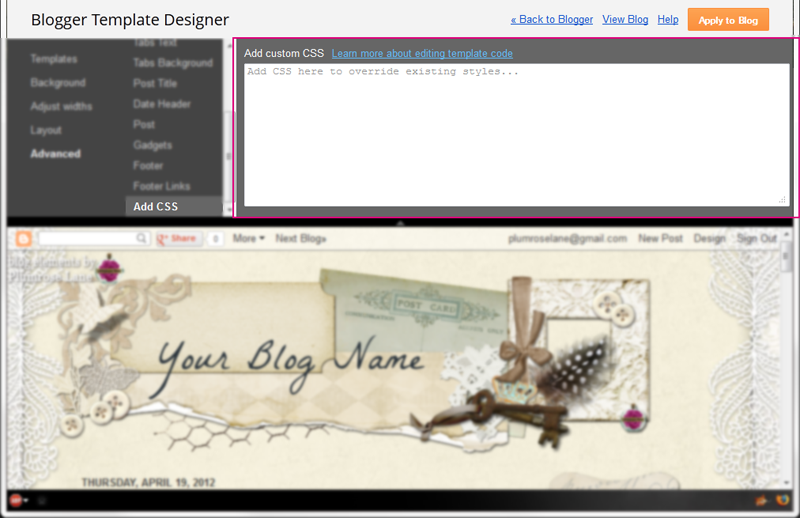
8. Click on that link to be taken to the CSS area...


If you've previously inserted any CSS code then you will see it present in this area. If you have not then this area will be empty on your blog.

9. Now copy the code from the scrolling box below...


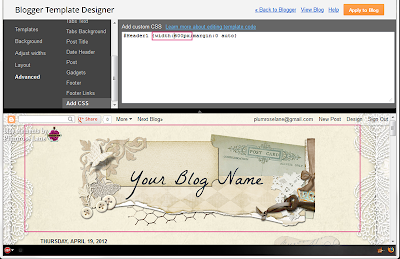
10. And paste it into the CSS area...


and you should see your banner image immediately shift to the right.

11. If you wish to move it over further to the right or left you can easily do this by either increasing or decreasing the last number in the code.  So, if the setting is at "0", then your banner will be all the way to the farthest left position it can go...


12. And if you increase the number to say "100", then you will see your banner image move way over to the right side...


13. Personally, I think somewhere between 30 - 50 works best but test it out and see what looks best on your own blog....


14.  Once you have your banner image set where you want it, then save your changes by clicking the "Apply to Blog" button...


That's it! You've now successfully centered your blog banner.  If you decide to change the dimensions of your blog layout in the future, you can simply return to this area and increase or decease that last number to recenter you banner image.

Enjoy~

Thursday

How to Add a Title to a Blog Header

This tutorial will cover how to add your blog title to one of my free blog banners.  This tutorial is designed to be used only with a free designer blog header and never meant to be used with any copyright protected images.  I offer a selection of free banners located through out my prefab blog themes and they are easily recognizable with the word "free" above them.  To find one of my free blog banners you can peruse the A-Z List of Blog Themes or select from one of the titles below, which are just a sampling of the free banners I offer...

Some of my Free Headers
A Heart for You, Binding Journey, Birthday Bash, Blueberry Plumcicle, Bundle of Joy, Cherish, Day Dream Believer, Fanciful Love, Flight of Fancy, Fore-FatherFreedom, Gilded Love, Je T'aime, Marleque, Once Upon a Pink October, Practical Magic, Providence, Spring Medley, St. Patty's Day, Stardust, Sunshine Garden, Tattered Garden, Tea for Two, and Vintage Easter

While I'm sure there are many free online options for successfully modifying images, for this tutorial we will be using PicMonkey.  I like this site because it has a reputable WOT rating and offers a nice simple to use interface.

Once you've selected a banner and saved it to your computer, you're ready to begin this tutorial. Be sure the banner is saved in an easy to find location ~ for this exercise I recommend placing the image on your desktop so it's super simple to find.  Now let's begin...

1. Open your browser and go to http://www.picmonkey.com...


2. Once there, hover your mouse over the "Edit Picture" area...


3. And you'll see the words change to "Click to open or drag a photo here"...


Since you have your banner located on your desktop you can easily drag and drop the image into the small rectangle area.

5. In one easy step this opens up the banner image in the PicMonkey photo editing area...


6. Now since my copyright only allows for adding text to banner images we're going to go right down to the text area and click on that...


7. Using the scroll bar, scroll through the selection of text choices to find one you like...


8. Once you've made your selection, click on that title, then click on the "Add Text" box at the top of the list...


9. With this, you'll see the Text box window open up, which includes a color chart and other selections, as well as a small box show up in the center of the banner image...


10. We'll begin by adding our text, then move on to modifying it's appearance, so let's begin by clicking inside that small text area in the center of the banner...


11. Click and type your entire blog title in that space...


12.Now before moving on, I recommend increasing the size of the text box close to how large you want your final text to appear.  To do this, hover your mouse over a corner of the white outline and grab one of the corner circles, then drag the corner out as far as you would like your title to go...


13. As you do this you'll notice your text increasing in size, so continue on until you have the size you want...


With that done you can now use the Text box menu to modify other options for your title.

14. To begin using the Text box options, highlight your blog title by scrolling over it with your mouse or click inside the white box where your title appears...


15. Go ahead and play around with these different buttons and settings to get the right affect you want for your blog title...


Here are a few tips...
If you click within the color lines you can change the color of your font.
✻ "B" and "I" stand for Bold and Italic.
✻ Under the "Size", drag the small circle across the bar to easily increase the size of your text.
✻ Clicking on the arrow next to "Normal" shows a selection of other affects.
It's fun to experiment so don't be shy.

16. When you're finished and your title is just as you would like it, go ahead and click the "Save" link at the top...


17. This opens the "Save" area...


18. In this area; you'll want to leave all of the presets as they are, including the artist's original title* and the image type**...


*Since you're using a free image you'll want to leave the title as is out of respect for the originating artist.

**This is especially important when using one of my blog banners as I only use PNG images for my blog banners which ensure a clear background which helps add dimension to my designs and blog themes.

19. Now click the "Save photo" button...


20. And in the pop-up window click the "Save" button...


That's it! You have successfully added text to a free blog banner, congratulations!  Now you can follow this tutorial ~ How to Install a Blog Header to add your new banner to your blog.

Enjoy~

Monday

How to: Center a Blog Header

In this tutorial we will walk you through the steps for center a blog header (or banner as it is also called). If you need help installing your blog banner then please view this tutorial first: How to Install a Blog Header  If you need a banner image I offer several free versions which you can find by browsing through my A-Z Theme List.

Below is an example of a blog banner image in place but obviously set off center. The default setting for most Blogger templates is for the banner image to show up toward the left side of your blog as shown below...


So let's begin...
1. Log into your blog and then click the "Design" link found in the top right corner...


2. In the next window click on the "Customize" button...


3. This will open the Blogger Template Designer which you can see an example of shown below...


4. Click on the "Advance" link in the bottom of the left side list...


5. Using the inner scroll bar...


6. Scroll down to the "Add CSS" link...


7. This is the area where you can add a snippet of CSS code to tell your blog to center the header...


8. Now copy the code below and paste it into the rectangle...


9. Now it should look like this...


Within the code you'll notice the number "900" ~ this is the standard size for all of my wide banners.  This size, when used in combination with the "Shrink to Fit" option when uploading a blog is how you can achieve the best fit for your blog.  Playing with both of these settings in different combinations will help you achieve the best look. 

10. To check your blog width, click on the "Adjust widths" link in the far left link list...


11. In case of my sample blog in this tutorial the blog is set to 860 pixels wide...


12.  So I'll jot this number down and return to the "Advanced" area by clicking on that link again...


13. Now, we can change that "900" to "860" as shown in the example below...


14. And preview the changes in the preview area below to see how the changes have taken affect...


15. In the example above it appears the banner has not moved.  This is common and you may need to play around with the number a bit until you begin to see the results you're looking for ~ you can see a few examples of making changes in the screen shots below...

:-----In this example the number is too small so the banner is cut off-----:

:-----In this example the number is too big so the banner is still sitting to the left-----:

:-----In this example the number is just perfect & the banner is centered-----:


16. Now that you have your banner code in place and the image is situated just where you want it, click the "Apply to Blog" button to save your changes...


That's it!  You can now click on the "View Blog" link to view your blog and centered banner.  Remember to use this tutorial in combination with my "How to Install a Blog Header" to find the right adjustments and fit for your own blog.

Enjoy~